
Blog image accessibility review
A practical review for deciding what a blog image communicates, writing the right text alternative, and checking its rendered behavior.
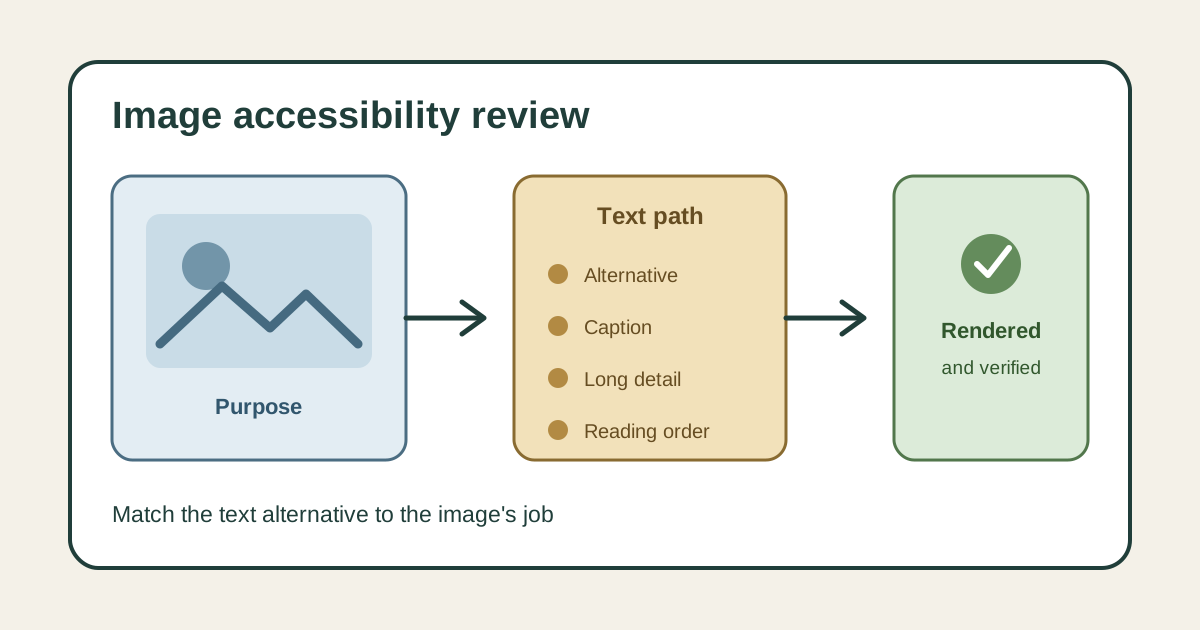
blog image accessibility review
A blog image accessibility review begins with purpose, not a description of every visible object. The editor must decide whether the image carries information, performs an action, repeats nearby text, or adds visual atmosphere. That decision determines what readers need when they cannot see the image in the same way.
Open a record for each owned image before release. Include the article route, asset path, source or creator, rights record, intended purpose, proposed text alternative, surrounding section, dimensions, format, reviewer, and immutable revision used for the decision.
Review the actual asset and the rendered page together. A useful image can become confusing when it appears under the wrong heading, duplicates a caption, loses a label at mobile size, or receives text that describes its colors while omitting the point it was meant to explain.
Decide whether the image carries information
State what a reader should learn or do because the image is present. A process diagram may show order and branching. A chart may communicate values and comparison, while a photograph may establish identity, condition, place, or evidence that the article discusses.
If removing the image would remove information from the page, treat it as informative or complex. If the same point is already complete in adjacent text and the image adds no new meaning, it may be decorative. The author's reason for including the asset matters more than the file type.
Functional images need a separate decision. When an image is the visible content of a link or control, its accessible name should communicate the action or destination. A literal description of the icon may leave a reader knowing its shape but not what activating it will do.
Write text alternatives for the assigned purpose
For an informative image, write a concise alternative that conveys the essential information in context. Do not begin with image of when the element already exposes that it is an image. Include words shown inside the graphic when those words are necessary to understand the message.
For a decorative image in an image element, use an empty text alternative so assistive technology can skip it. W3C's Images Tutorial distinguishes this from omitting the attribute, and recommends purpose-based alternatives for informative, decorative, functional, and complex images.
Read the alternative beside the paragraph and caption. Remove repetition that would make the same sentence arrive several times, but keep information that exists only in the asset. File names, internal campaign labels, and vague phrases such as blog graphic do not explain the image's purpose.
Give complex images a complete text path
A chart, map, or detailed process diagram may contain more information than one short alternative can carry. Use the short text to identify the image and its main point, then provide the essential details in nearby prose, a structured table, or another accessible long description the reader can reach.
The longer text should preserve relationships, values, units, sequence, labels, and qualifications that the article depends on. Do not force someone to infer the conclusion from a list of colors or coordinates. If a table presents the same data, verify its headers and reading order rather than treating its presence as automatic equivalence.
Keep source and method notes visible when they affect interpretation. A chart without its date range, population, unit, or source can mislead every reader, regardless of whether the image has a technically valid alternative.
Inspect visual legibility and layout behavior
Open the asset at its intended desktop and mobile sizes. Check text size, contrast, color distinctions, cropping, aspect ratio, labels, line weight, and the space around important details. Information should not disappear when the image scales or when color is unavailable as the only cue.
Set intrinsic width and height so the layout can reserve the correct space. Confirm that responsive styles keep the asset within its container and that loading behavior does not hide an image needed to understand the opening content. A decorative asset should not delay the useful part of the article.
Review light and dark contexts when the site supports them. Transparent media may lose lines or labels against a new background, while a solid image may meet contrast internally but blend into the surrounding component.
Check the rendered accessibility output
Inspect the rendered image element alongside the content record. Confirm the final source, alternative, dimensions, loading behavior, caption relationship, and any link or button name. Make sure a decorative decision produces an empty alternative rather than a missing attribute or a repeated file name.
Navigate the page with a keyboard and inspect the accessibility tree with the supported browser tools. The image should appear in the expected reading position, and an interactive image should have one clear focus target with an accurate name. Hidden duplicate text should not create a second announcement.
Test failure states where practical. A broken image request should leave enough text for the reader to understand the missing content or action. An inaccessible chart should stop release even when the rest of the article renders correctly.
Validate ownership and the live release
Verify that the asset lives at the governed route and is unique to the article unless a documented shared-media rule applies. Check its format, dimensions, file size policy, rights record, descriptive name, and repository inclusion. Exclude drafts, source working files, private notes, and unused variants from the release package.
Build the site and inspect the canonical article, Blog index card, metadata image, Article schema, internal links, and sitemap ownership. If the same asset appears in a social preview or structured field, confirm that the crop and purpose remain appropriate in that context.
After deployment, request the live page and asset, then record the deployed revision, response, rendered alternative, dimensions, and verification time. Reopen the review when the image, article meaning, component behavior, or surrounding text changes materially.
Sources
- Images Tutorial, W3C Web Accessibility Initiative. Explains purpose-based text alternatives for informative, decorative, functional, and complex images, including empty alternatives for decoration.
Related GTM guides
Frequently asked questions
How do you decide whether a blog image is decorative?
Ask what information or function would disappear if the image were removed. When nearby text already provides the complete meaning and the asset adds only visual treatment, an empty text alternative may be appropriate.
What should alt text for an informative image contain?
Describe the essential information or function the image contributes in its article context. Include necessary words shown in the asset, avoid repeating the caption, and leave visual detail out when it does not affect the image's purpose.
How should a complex chart or diagram be handled?
Use a short alternative to identify the image and its main point, then provide the essential values, relationships, sequence, labels, units, and qualifications in nearby prose, a structured table, or another accessible long description.